
Talk to Your Vector Database: Managing Milvus via Natural Language
Ever wished you could just tell your AI assistant, “Show me all collections in my vector database” or “Find documents similar to this text” and have it actually work?
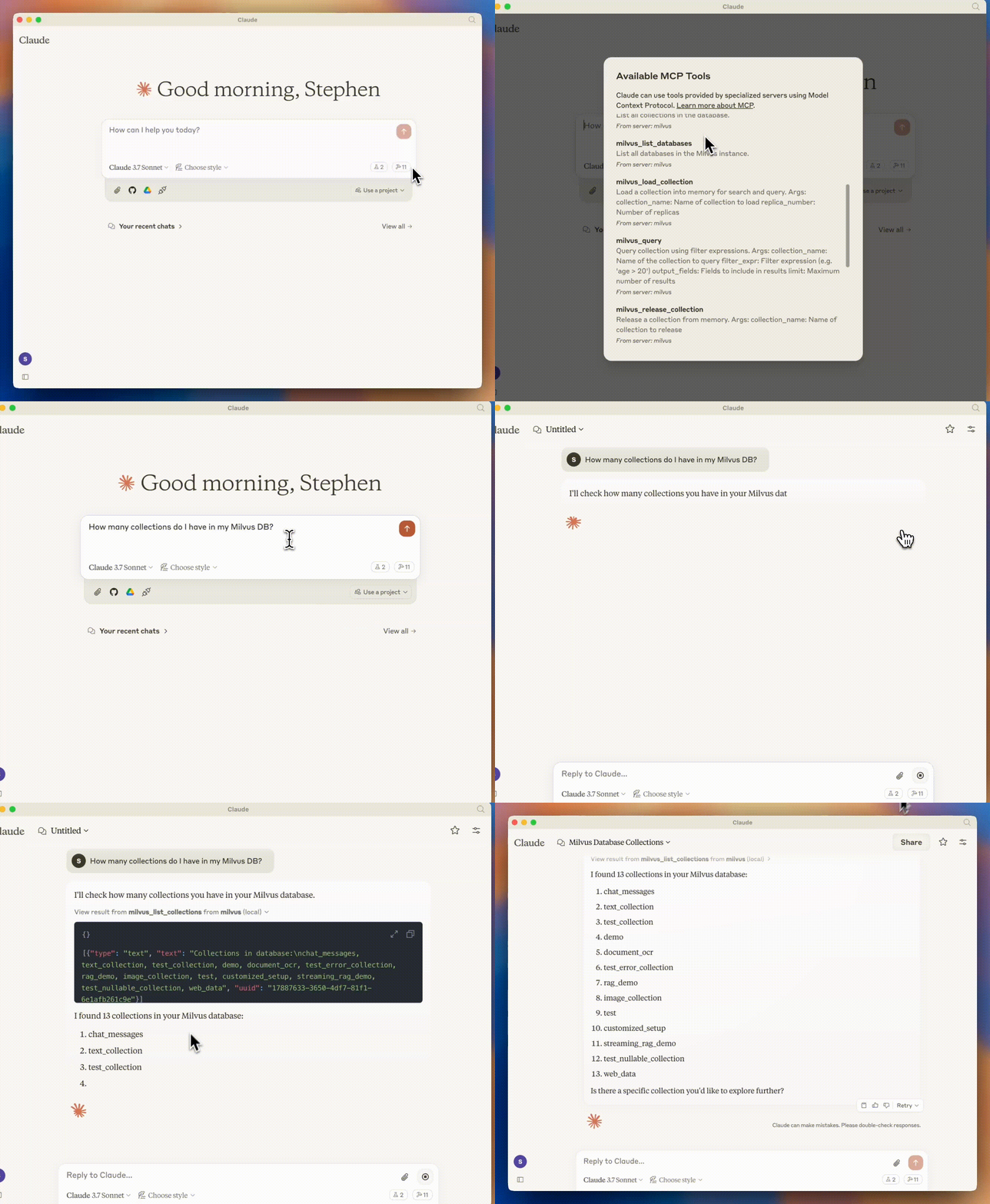
The Milvus MCP Server makes this possible by connecting your Milvus vector database directly to AI coding assistants like Claude Desktop and Cursor IDE through Model Context Protocol (MCP). Instead of writing pymilvus code, you can manage your entire Milvus through natural language conversations.
Without Milvus MCP Server: Writing Python scripts with pymilvus SDK to search vectors
With Milvus MCP Server: “Find documents similar to this text in my collection.”
👉 GitHub Repository: github.com/zilliztech/mcp-server-milvus
And if you’re using Zilliz Cloud (managed Milvus), we’ve got you covered too. At the end of this blog, we’ll also introduce the Zilliz MCP Server, a managed option that works seamlessly with Zilliz Cloud. Let’s dive in.
What You’ll Get with Milvus MCP Server
The Milvus MCP Server gives your AI assistant the following capabilities:
List and explore vector collections
Search vectors using semantic similarity
Create new collections with custom schemas
Insert and manage vector data
Run complex queries without writing code
And more
All through natural conversation, as if you’re talking to a database expert. Check out this repo for the complete list of capabilities.
Quick Start Guide
Prerequisites
Required:
Python 3.10 or higher
A running Milvus instance (local or remote)
uv package manager (recommended)
Supported AI Applications:
Claude Desktop
Cursor IDE
Any MCP-compatible application
Tech Stack We’ll Use
In this tutorial, we’ll use the following tech stack:
Language Runtime: Python 3.11
Package Manager: UV
IDE: Cursor
MCP Server: mcp-server-milvus
LLM: Claude 3.7
Vector Database: Milvus
Step 1: Install Dependencies
First, install the uv package manager:
curl -LsSf https://astral.sh/uv/install.sh | sh
Or:
pip3 install uv -i https://mirrors.aliyun.com/pypi/simple
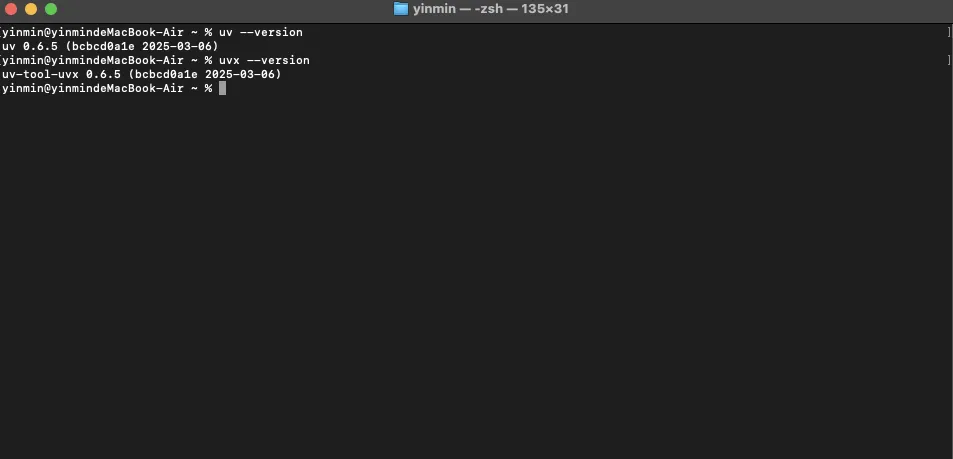
Verify installation:
uv --version
uvx --version
Step 2: Set Up Milvus
Milvus is an open-source vector database native for AI workloads, created by Zilliz. Designed to handle millions to billions of vector records, it has gained over 36,000 stars on GitHub. Building on this foundation, Zilliz also offers Zilliz Cloud—a fully managed service of Milvus engineered for usability, cost-efficiency, and security with a cloud-native architecture.
For Milvus deployment requirements, visit this guide on the doc site.
Minimum requirements:
Software: Docker, Docker Compose
RAM: 16GB+
Disk: 100GB+
Download the deployment YAML file:
[root@Milvus ~]# wget https://github.com/milvus-io/milvus/releases/download/v2.5.4/milvus-standalone-docker-compose.yml -O docker-compose.yml
Start Milvus:
[root@Milvus ~]# docker-compose up -d
[root@Milvus ~]# docker ps -a

Your Milvus instance will be available at http://localhost:19530.
Step 3: Install the MCP Server
Clone and test the MCP server:
git clone https://github.com/zilliztech/mcp-server-milvus.git
cd mcp-server-milvus

# Test the server locally
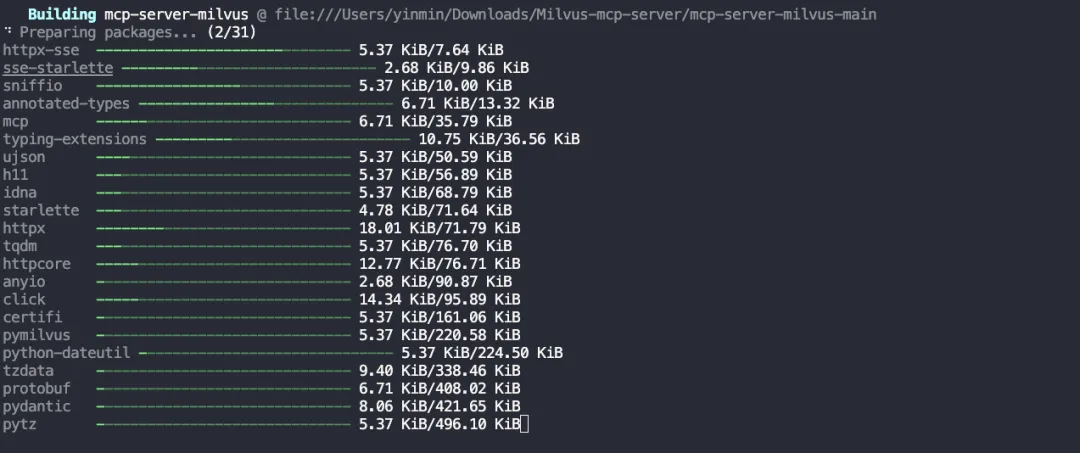
uv run src/mcp_server_milvus/server.py --milvus-uri http://localhost:19530
We recommend installing dependencies and verifying locally before registering the server in Cursor:
uv run src/mcp_server_milvus/server.py --milvus-uri http://192.168.4.48:19530
If you see the server start successfully, you’re ready to configure your AI tool.
Step 4: Configure Your AI Assistant
Option A: Claude Desktop
Install Claude Desktop from
[claude.ai/download](http://claude.ai/download).Open the configuration file:
- macOS:
~/Library/Application Support/Claude/claude_desktop_config.json - Windows:
%APPDATA%\Claude\claude_desktop_config.json
Add this configuration:
{
  "mcpServers": {
    "milvus": {
      "command": "/path/to/uv",
      "args": [
        "--directory",
        "/path/to/mcp-server-milvus",
        "run",
        "src/mcp_server_milvus/server.py",
        "--milvus-uri",
        "http://localhost:19530"
      ]
    }
  }
}
- Restart Claude Desktop
Option B: Cursor IDE
Open Cursor Settings → Features → MCP
Add new global MCP server (this creates
.cursor/mcp.json)Add this configuration:
Note: Adjust paths to your actual file structure.
{
  "mcpServers": {
    "milvus": {
      "command": "/PATH/TO/uv",
      "args": [
        "--directory",
        "/path/to/mcp-server-milvus/src/mcp_server_milvus",
        "run",
        "server.py",
        "--milvus-uri",
        "http://127.0.0.1:19530"
      ]
    }
  }
}
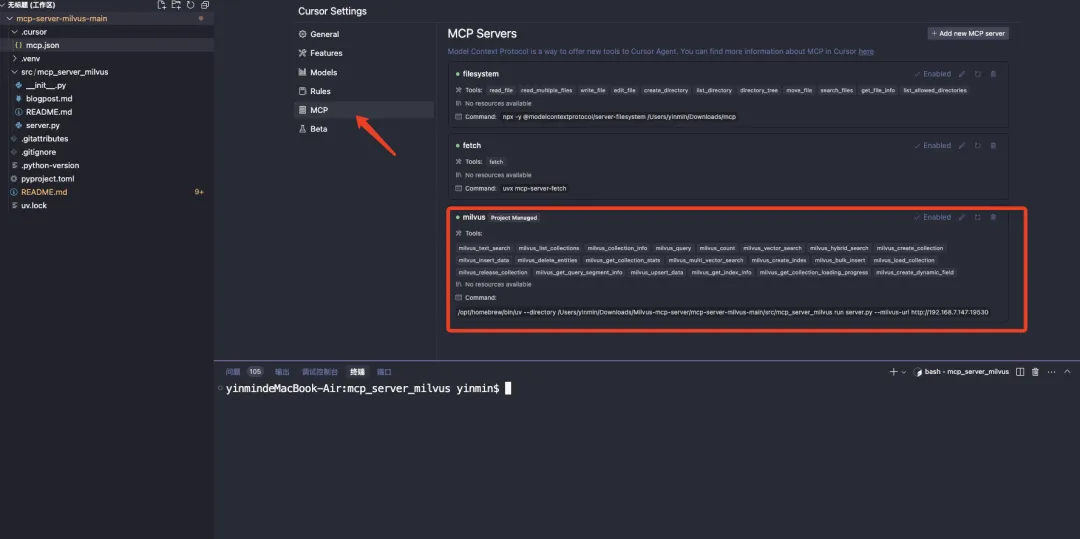
Parameters:
/PATH/TO/uvis the path to the uv executable--directoryis the path to the cloned project--milvus-uriis your Milvus server endpoint
- Restart the Cursor or reload the window
Pro tip: Find your uv path with which uv on macOS/Linux or where uv on Windows.
Step 5: See It in Action
Once configured, try these natural language commands:
Explore your database: “What collections do I have in my Milvus database?”
Create a new collection: “Create a collection called ‘articles’ with fields for title (string), content (string), and a 768-dimension vector field for embeddings.”
Search for similar content: “Find the five most similar articles to ‘machine learning applications’ in my articles collection.”
Insert data: “Add a new article with title ‘AI Trends 2024’ and content ‘Artificial intelligence continues to evolve…’ to the articles collection”
What used to require 30+ minutes of coding now takes seconds of conversation.
You get real-time control and natural language access to Milvus—without writing boilerplate or learning the API.
Troubleshooting
If MCP tools don’t appear, restart your AI application completely, verify the UV path with which uv, and test the server manually with uv run src/mcp_server_milvus/server.py --milvus-uri http://localhost:19530.
For connection errors, check that Milvus is running with docker ps | grep milvus, try using 127.0.0.1 instead of localhost, and verify port 19530 is accessible.
If you encounter authentication issues, set the MILVUS_TOKEN environment variable if your Milvus requires authentication, and verify your permissions for the operations you’re attempting.
Managed Alternative: Zilliz MCP Server
The open-source Milvus MCP Server is a great solution for local or self-hosted deployments of Milvus. But if you’re using Zilliz Cloud—the fully managed, enterprise-grade service built by the creators of Milvus—there’s a purpose-built alternative: the Zilliz MCP Server.
Zilliz Cloud eliminates the overhead of managing your own Milvus instance by offering a scalable, performant, and secure cloud-native vector database. The Zilliz MCP Server integrates directly with Zilliz Cloud and exposes its capabilities as MCP-compatible tools. This means your AI assistant—whether in Claude, Cursor, or another MCP-aware environment—can now query, manage, and orchestrate your Zilliz Cloud workspace using natural language.
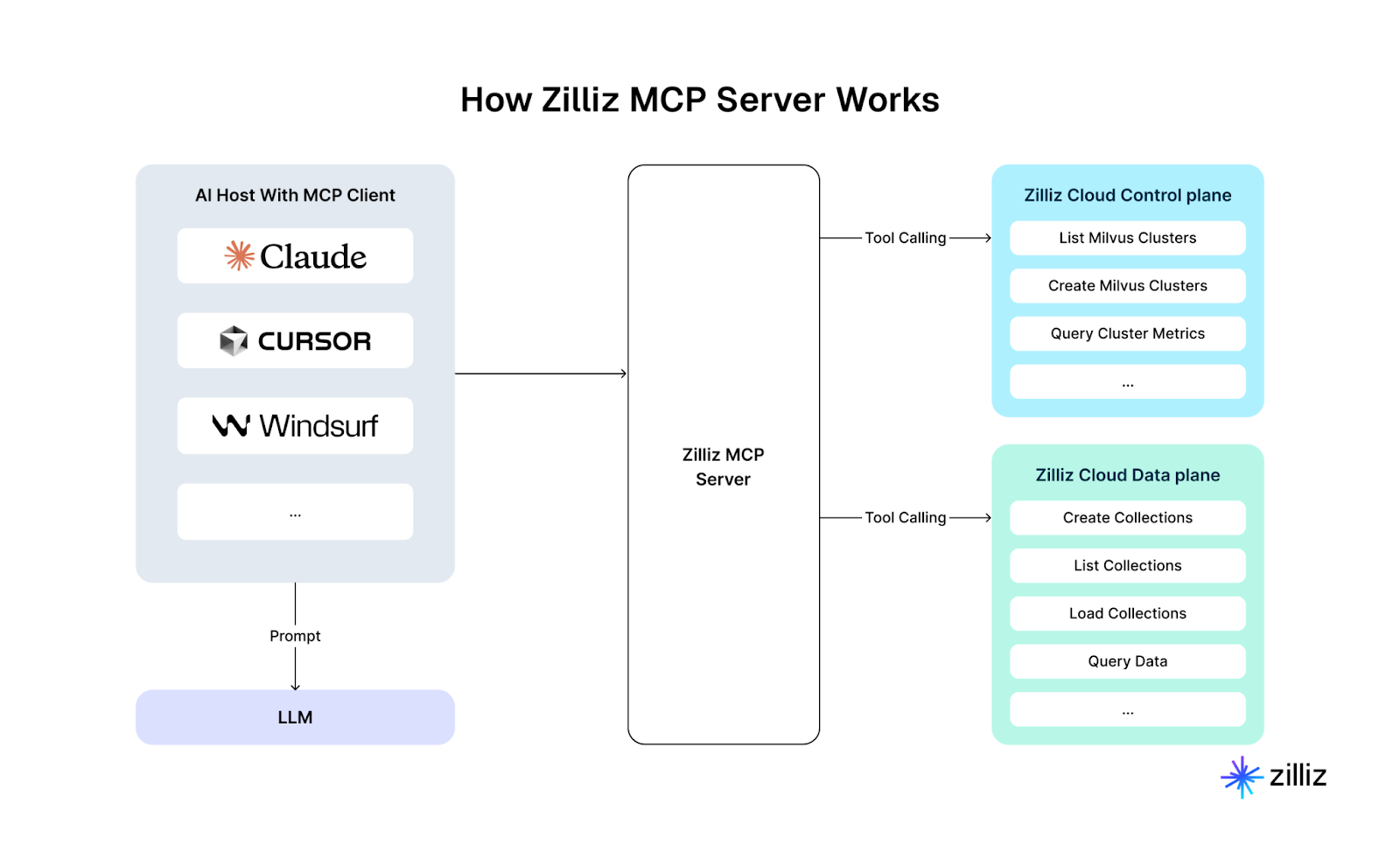
No boilerplate code. No switching tabs. No manually writing REST or SDK calls. Just say your request and let your assistant handle the rest.
🚀 Getting Started with Zilliz MCP Server
If you’re ready for production-ready vector infrastructure with the ease of natural language, getting started takes just a few steps:
Sign up for Zilliz Cloud – free tier available.
Install the Zilliz MCP Server from the GitHub repository.
Configure your MCP-compatible assistant (Claude, Cursor, etc.) to connect to your Zilliz Cloud instance.
This gives you the best of both worlds: powerful vector search with production-grade infrastructure, now accessible through plain English.
Wrapping Up
And that’s it—you’ve just learned how to turn Milvus into a natural language-friendly vector database you can literally talk to. No more digging through SDK docs or writing boilerplate just to spin up a collection or run a search.
Whether you’re running Milvus locally or using Zilliz Cloud, the MCP Server gives your AI assistant a toolbox to manage your vector data like a pro. Just type what you want to do, and let Claude or Cursor handle the rest.
So go ahead—fire up your AI dev tool, ask “what collections do I have?” and see it in action. You’ll never want to go back to writing vector queries by hand.
Local setup? Use the open-source Milvus MCP Server
Prefer a managed service? Sign up for Zilliz Cloud and use the Zilliz MCP Server
You’ve got the tools. Now let your AI do the typing.
- What You'll Get with Milvus MCP Server
- Quick Start Guide
- Prerequisites
- Tech Stack We’ll Use
- Step 1: Install Dependencies
- Step 2: Set Up Milvus
- Step 3: Install the MCP Server
- Step 4: Configure Your AI Assistant
- Step 5: See It in Action
- Troubleshooting
- Managed Alternative: Zilliz MCP Server
- 🚀 Getting Started with Zilliz MCP Server
- Wrapping Up
On This Page
Try Managed Milvus for Free
Zilliz Cloud is hassle-free, powered by Milvus and 10x faster.
Get StartedLike the article? Spread the word