

RAG Multimodal dengan Milvus


Jika Anda ingin melihat hasil akhir dari tutorial ini, Anda dapat langsung mengunjungi demo online.
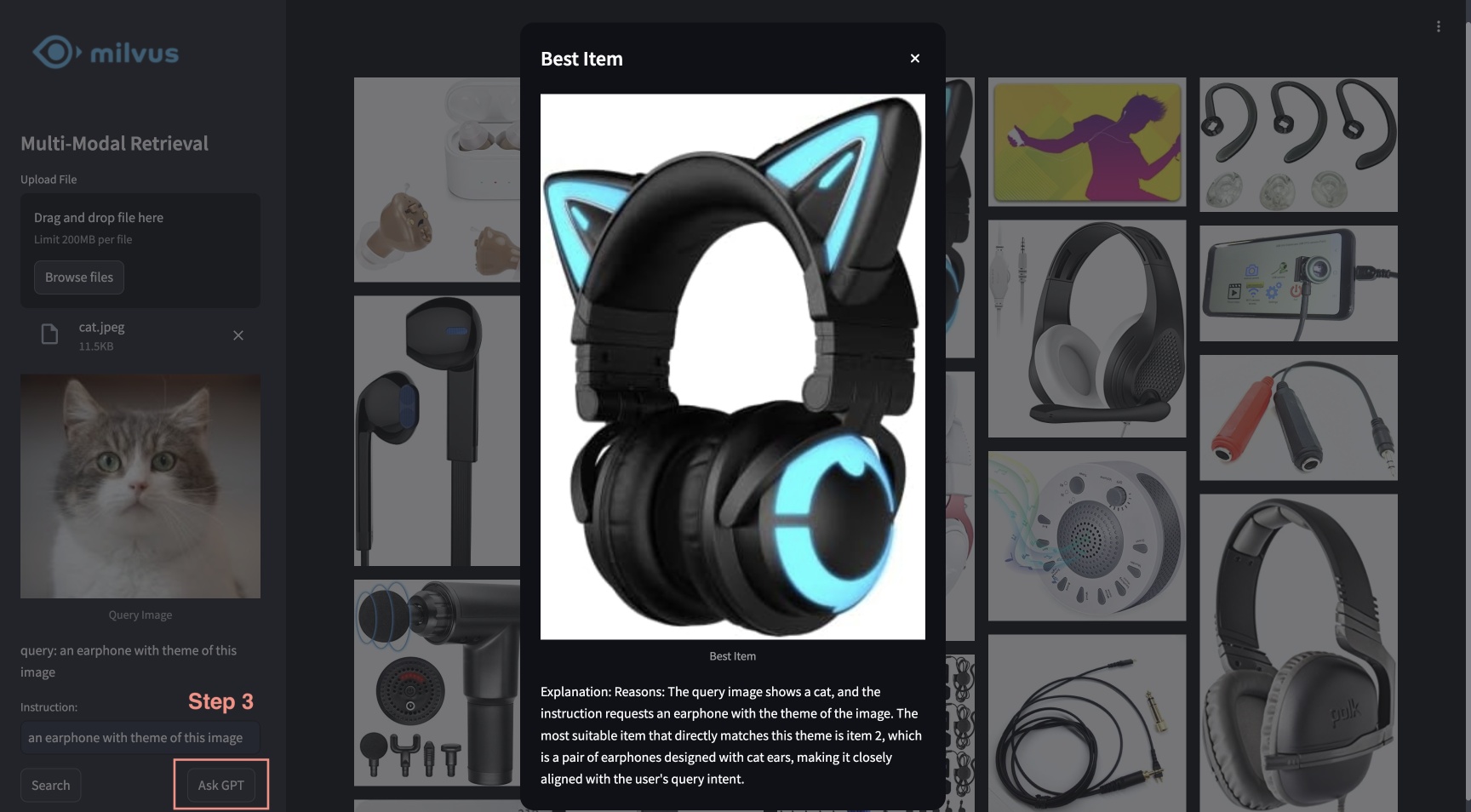
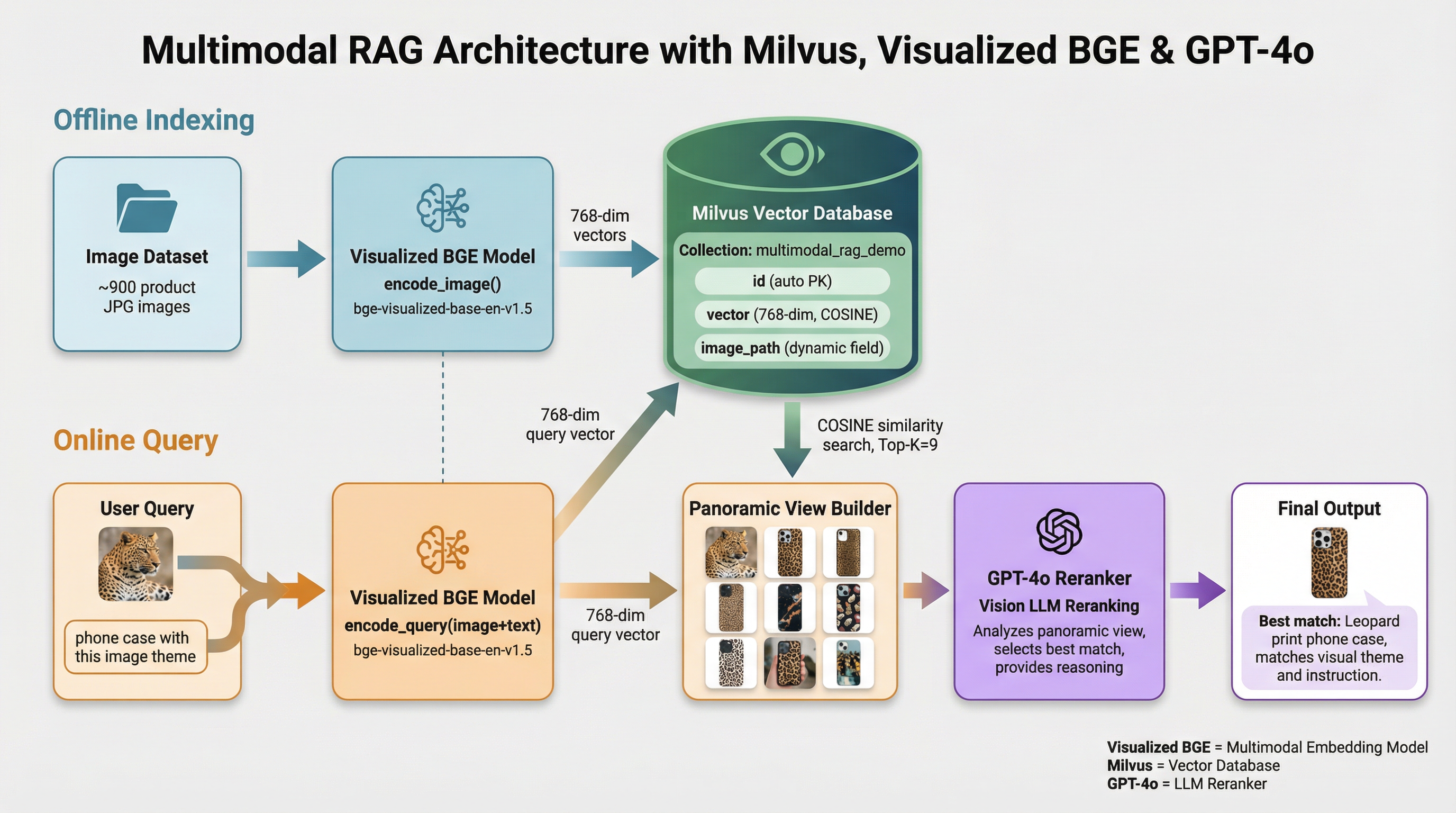
Tutorial ini menampilkan RAG multimodal yang didukung oleh Milvus, model BGE yang telah divisualisasikan, dan GPT-4o. Dengan sistem ini, pengguna dapat mengunggah gambar dan mengedit instruksi teks, yang diproses oleh model pencarian terpadu BGE untuk mencari gambar-gambar kandidat. GPT-4o kemudian bertindak sebagai pengurut ulang (reranker), memilih gambar yang paling sesuai, dan memberikan alasan di balik pilihan tersebut. Kombinasi yang kuat ini memungkinkan pengalaman pencarian gambar yang mulus dan intuitif, memanfaatkan Milvus untuk pengambilan data yang efisien, model BGE untuk pemrosesan dan pencocokan gambar yang akurat, serta GPT-4o untuk pengurutan ulang tingkat lanjut.
Persiapan
Instal Dependensi
$ pip install --upgrade pymilvus openai datasets opencv-python timm einops ftfy peft tqdm
$ git clone https://github.com/FlagOpen/FlagEmbedding.git
$ pip install -e FlagEmbedding
Jika Anda menggunakan Google Colab, untuk mengaktifkan dependensi yang baru saja diinstal, Anda mungkin perlu me-restart runtime (klik menu “Runtime” di bagian atas layar, lalu pilih “Restart session” dari menu dropdown).
Unduh Data
Perintah berikut akan mengunduh data contoh dan mengekstraknya ke folder lokal “./images_folder” yang mencakup:
- images: Sebagian dari Amazon Reviews 2023 yang berisi sekitar 900 gambar dari kategori "Appliance", "Cell_Phones_and_Accessories", dan "Electronics".
- leopard.jpg: Contoh gambar kueri.
$ wget https://github.com/milvus-io/bootcamp/releases/download/data/amazon_reviews_2023_subset.tar.gz
$ tar -xzf amazon_reviews_2023_subset.tar.gz
Memuat Model Embedding
Kita akan menggunakan model BGE Visualized “bge-visualized-base-en-v1.5” untuk menghasilkan embedding baik untuk gambar maupun teks.
1. Unduh bobot
$ wget https://huggingface.co/BAAI/bge-visualized/resolve/main/Visualized_base_en_v1.5.pth
2. Membangun encoder
import torch
from visual_bge.modeling import Visualized_BGE


class Encoder:
    def __init__(self, model_name: str, model_path: str):
        self.model = Visualized_BGE(model_name_bge=model_name, model_weight=model_path)
        self.model.eval()

    def encode_query(self, image_path: str, text: str) -> list[float]:
        with torch.no_grad():
            query_emb = self.model.encode(image=image_path, text=text)
        return query_emb.tolist()[0]

    def encode_image(self, image_path: str) -> list[float]:
        with torch.no_grad():
            query_emb = self.model.encode(image=image_path)
        return query_emb.tolist()[0]


model_name = "BAAI/bge-base-en-v1.5"
model_path = "./Visualized_base_en_v1.5.pth"  # Change to your own value if using a different model path
encoder = Encoder(model_name, model_path)
Memuat Data
Bagian ini akan memuat gambar contoh ke dalam basis data beserta embedding yang sesuai.
Menghasilkan embeddings
Muat semua gambar JPEG dari direktori data dan terapkan encoder untuk mengubah gambar menjadi embedding.
import os
from tqdm import tqdm
from glob import glob


# Generate embeddings for the image dataset
data_dir = (
    "./images_folder"  # Change to your own value if using a different data directory
)
image_list = glob(
    os.path.join(data_dir, "images", "*.jpg")
)  # We will only use images ending with ".jpg"
image_dict = {}
for image_path in tqdm(image_list, desc="Generating image embeddings: "):
    try:
        image_dict[image_path] = encoder.encode_image(image_path)
    except Exception as e:
        print(f"Failed to generate embedding for {image_path}. Skipped.")
        continue
print("Number of encoded images:", len(image_dict))
Generating image embeddings: 100%|██████████| 900/900 [00:20<00:00, 44.08it/s]

Number of encoded images: 900
Sisipkan ke Milvus
Masukkan gambar beserta jalur dan embedding-nya ke dalam koleksi Milvus.
Mengenai argumen ` MilvusClient`:
- Menetapkan `
uri` sebagai file lokal, misalnya `./milvus_demo.db`, merupakan metode yang paling praktis, karena secara otomatis memanfaatkan Milvus Lite untuk menyimpan semua data dalam file tersebut. - Jika Anda memiliki data berskala besar, Anda dapat menyiapkan server Milvus yang lebih bertenaga di Docker atau Kubernetes. Dalam konfigurasi ini, silakan gunakan URI server, misalnya
http://localhost:19530, sebagaiuriAnda. - Jika Anda ingin menggunakan Zilliz Cloud, layanan cloud yang dikelola sepenuhnya untuk Milvus, sesuaikan nilai `
uri` dan `token`, yang sesuai dengan Public Endpoint dan API Key di Zilliz Cloud.
from pymilvus import MilvusClient


dim = len(list(image_dict.values())[0])
collection_name = "multimodal_rag_demo"

# Connect to Milvus client given URI
milvus_client = MilvusClient(uri="./milvus_demo.db")

# Create Milvus Collection
# By default, vector field name is "vector"
milvus_client.create_collection(
    collection_name=collection_name,
    auto_id=True,
    dimension=dim,
    enable_dynamic_field=True,
)

# Insert data into collection
milvus_client.insert(
    collection_name=collection_name,
    data=[{"image_path": k, "vector": v} for k, v in image_dict.items()],
)
DEBUG:pymilvus.milvus_client.milvus_client:Created new connection using: 7f33daeed99a4d8e8a5e28d47673ecc8
DEBUG:pymilvus.milvus_client.milvus_client:Successfully created collection: multimodal_rag_demo
DEBUG:pymilvus.milvus_client.milvus_client:Successfully created an index on collection: multimodal_rag_demo


{'insert_count': 900,
 'ids': [451537887696781312, 451537887696781313, ..., 451537887696782211],
 'cost': 0}
Pencarian Multimodal dengan Generative Reranker
Pada bagian ini, kami akan terlebih dahulu mencari gambar yang relevan melalui kueri multimodal, kemudian menggunakan layanan LLM untuk menyusun ulang peringkat hasil dan menemukan yang terbaik beserta penjelasannya.
Jalankan pencarian
Sekarang kita siap melakukan pencarian gambar tingkat lanjut dengan data kueri yang terdiri dari instruksi gambar dan teks.
query_image = os.path.join(
    data_dir, "leopard.jpg"
)  # Change to your own query image path
query_text = "phone case with this image theme"

# Generate query embedding given image and text instructions
query_vec = encoder.encode_query(image_path=query_image, text=query_text)

search_results = milvus_client.search(
    collection_name=collection_name,
    data=[query_vec],
    output_fields=["image_path"],
    limit=9,  # Max number of search results to return
    search_params={"metric_type": "COSINE", "params": {}},  # Search parameters
)[0]

retrieved_images = [hit.get("entity").get("image_path") for hit in search_results]
print(retrieved_images)
['./images_folder/images/518Gj1WQ-RL._AC_.jpg', './images_folder/images/41n00AOfWhL._AC_.jpg', './images_folder/images/51Wqge9HySL._AC_.jpg', './images_folder/images/51R2SZiywnL._AC_.jpg', './images_folder/images/516PebbMAcL._AC_.jpg', './images_folder/images/51RrgfYKUfL._AC_.jpg', './images_folder/images/515DzQVKKwL._AC_.jpg', './images_folder/images/51BsgVw6RhL._AC_.jpg', './images_folder/images/51INtcXu9FL._AC_.jpg']
Menyusun ulang peringkat dengan GPT-4o
Kita akan menggunakan LLM untuk mengurutkan gambar dan menghasilkan penjelasan untuk hasil terbaik berdasarkan kueri pengguna dan hasil yang diperoleh.
1. Buat tampilan panorama
import numpy as np
import cv2

img_height = 300
img_width = 300
row_count = 3


def create_panoramic_view(query_image_path: str, retrieved_images: list) -> np.ndarray:
    """
    creates a 5x5 panoramic view image from a list of images

    args:
        images: list of images to be combined

    returns:
        np.ndarray: the panoramic view image
    """
    panoramic_width = img_width * row_count
    panoramic_height = img_height * row_count
    panoramic_image = np.full(
        (panoramic_height, panoramic_width, 3), 255, dtype=np.uint8
    )

    # create and resize the query image with a blue border
    query_image_null = np.full((panoramic_height, img_width, 3), 255, dtype=np.uint8)
    query_image = Image.open(query_image_path).convert("RGB")
    query_array = np.array(query_image)[:, :, ::-1]
    resized_image = cv2.resize(query_array, (img_width, img_height))

    border_size = 10
    blue = (255, 0, 0)  # blue color in BGR
    bordered_query_image = cv2.copyMakeBorder(
        resized_image,
        border_size,
        border_size,
        border_size,
        border_size,
        cv2.BORDER_CONSTANT,
        value=blue,
    )

    query_image_null[img_height * 2 : img_height * 3, 0:img_width] = cv2.resize(
        bordered_query_image, (img_width, img_height)
    )

    # add text "query" below the query image
    text = "query"
    font_scale = 1
    font_thickness = 2
    text_org = (10, img_height * 3 + 30)
    cv2.putText(
        query_image_null,
        text,
        text_org,
        cv2.FONT_HERSHEY_SIMPLEX,
        font_scale,
        blue,
        font_thickness,
        cv2.LINE_AA,
    )

    # combine the rest of the images into the panoramic view
    retrieved_imgs = [
        np.array(Image.open(img).convert("RGB"))[:, :, ::-1] for img in retrieved_images
    ]
    for i, image in enumerate(retrieved_imgs):
        image = cv2.resize(image, (img_width - 4, img_height - 4))
        row = i // row_count
        col = i % row_count
        start_row = row * img_height
        start_col = col * img_width

        border_size = 2
        bordered_image = cv2.copyMakeBorder(
            image,
            border_size,
            border_size,
            border_size,
            border_size,
            cv2.BORDER_CONSTANT,
            value=(0, 0, 0),
        )
        panoramic_image[
            start_row : start_row + img_height, start_col : start_col + img_width
        ] = bordered_image

        # add red index numbers to each image
        text = str(i)
        org = (start_col + 50, start_row + 30)
        (font_width, font_height), baseline = cv2.getTextSize(
            text, cv2.FONT_HERSHEY_SIMPLEX, 1, 2
        )

        top_left = (org[0] - 48, start_row + 2)
        bottom_right = (org[0] - 48 + font_width + 5, org[1] + baseline + 5)

        cv2.rectangle(
            panoramic_image, top_left, bottom_right, (255, 255, 255), cv2.FILLED
        )
        cv2.putText(
            panoramic_image,
            text,
            (start_col + 10, start_row + 30),
            cv2.FONT_HERSHEY_SIMPLEX,
            1,
            (0, 0, 255),
            2,
            cv2.LINE_AA,
        )

    # combine the query image with the panoramic view
    panoramic_image = np.hstack([query_image_null, panoramic_image])
    return panoramic_image
Gabungkan gambar kueri dan gambar yang diperoleh dengan indeks dalam tampilan panorama.
from PIL import Image

combined_image_path = os.path.join(data_dir, "combined_image.jpg")
panoramic_image = create_panoramic_view(query_image, retrieved_images)
cv2.imwrite(combined_image_path, panoramic_image)

combined_image = Image.open(combined_image_path)
show_combined_image = combined_image.resize((300, 300))
show_combined_image.show()
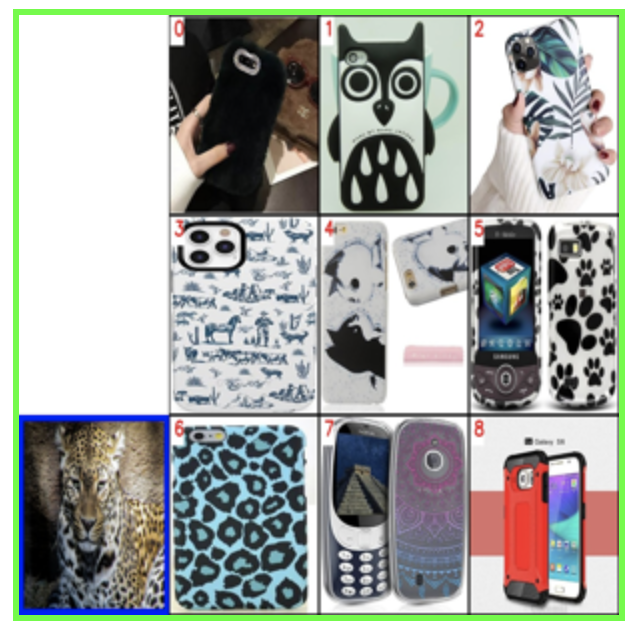 Buat tampilan panorama
2. Urutkan ulang dan berikan penjelasan
Kami akan mengirimkan gambar gabungan tersebut ke layanan LLM multimodal bersama dengan prompt yang tepat untuk mengurutkan hasil yang diperoleh beserta penjelasannya. Untuk mengaktifkan GPT-4o sebagai LLM, Anda perlu menyiapkan Kunci API OpenAI Anda.
import requests
import base64

openai_api_key = "sk-***"  # Change to your OpenAI API Key


def generate_ranking_explanation(
    combined_image_path: str, caption: str, infos: dict = None
) -> tuple[list[int], str]:
    with open(combined_image_path, "rb") as image_file:
        base64_image = base64.b64encode(image_file.read()).decode("utf-8")

    information = (
        "You are responsible for ranking results for a Composed Image Retrieval. "
        "The user retrieves an image with an 'instruction' indicating their retrieval intent. "
        "For example, if the user queries a red car with the instruction 'change this car to blue,' a similar type of car in blue would be ranked higher in the results. "
        "Now you would receive instruction and query image with blue border. Every item has its red index number in its top left. Do not misunderstand it. "
        f"User instruction: {caption} \n\n"
    )

    # add additional information for each image
    if infos:
        for i, info in enumerate(infos["product"]):
            information += f"{i}. {info}\n"

    information += (
        "Provide a new ranked list of indices from most suitable to least suitable, followed by an explanation for the top 1 most suitable item only. "
        "The format of the response has to be 'Ranked list: []' with the indices in brackets as integers, followed by 'Reasons:' plus the explanation why this most fit user's query intent."
    )

    headers = {
        "Content-Type": "application/json",
        "Authorization": f"Bearer {openai_api_key}",
    }

    payload = {
        "model": "gpt-4o",
        "messages": [
            {
                "role": "user",
                "content": [
                    {"type": "text", "text": information},
                    {
                        "type": "image_url",
                        "image_url": {"url": f"data:image/jpeg;base64,{base64_image}"},
                    },
                ],
            }
        ],
        "max_tokens": 300,
    }

    response = requests.post(
        "https://api.openai.com/v1/chat/completions", headers=headers, json=payload
    )
    result = response.json()["choices"][0]["message"]["content"]

    # parse the ranked indices from the response
    start_idx = result.find("[")
    end_idx = result.find("]")
    ranked_indices_str = result[start_idx + 1 : end_idx].split(",")
    ranked_indices = [int(index.strip()) for index in ranked_indices_str]

    # extract explanation
    explanation = result[end_idx + 1 :].strip()

    return ranked_indices, explanation
Dapatkan indeks gambar setelah pemeringkatan serta alasan di balik hasil terbaik:
ranked_indices, explanation = generate_ranking_explanation(
    combined_image_path, query_text
)
3. Tampilkan hasil terbaik beserta penjelasannya
print(explanation)

best_index = ranked_indices[0]
best_img = Image.open(retrieved_images[best_index])
best_img = best_img.resize((150, 150))
best_img.show()
Reasons: The most suitable item for the user's query intent is index 6 because the instruction specifies a phone case with the theme of the image, which is a leopard. The phone case with index 6 has a thematic design resembling the leopard pattern, making it the closest match to the user's request for a phone case with the image theme.
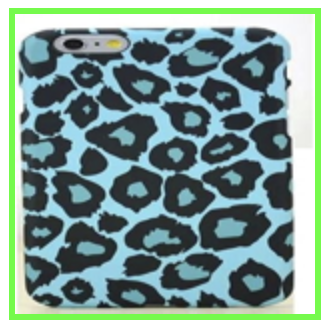 Hasil terbaik
Penerapan Cepat
Untuk mempelajari cara memulai demo online dengan tutorial ini, silakan lihat aplikasi contoh.
